2023 Ford Expedition Owner’s Manual — Creating a MyKey
MyKey™
CREATING A MYKEY - VEHICLES WITHOUT: PUSH BUTTON START
- Switch the ignition on using the key you want to create as MyKey.
- Press Settings on the touchscreen.
- Press Vehicle Settings.
- Press MyKey.
- Press Create MyKey.
- Press Yes.
- Switch the ignition off.
Note: You successfully created a MyKey. We recommend that you label this key so you can distinguish it from the admin keys.
Note: The programmed restrictions apply when you switch the vehicle off, open and close the driver door and restart your vehicle with the programmed key or remote control.
CREATING A MYKEY - VEHICLES WITH: PUSH BUTTON START
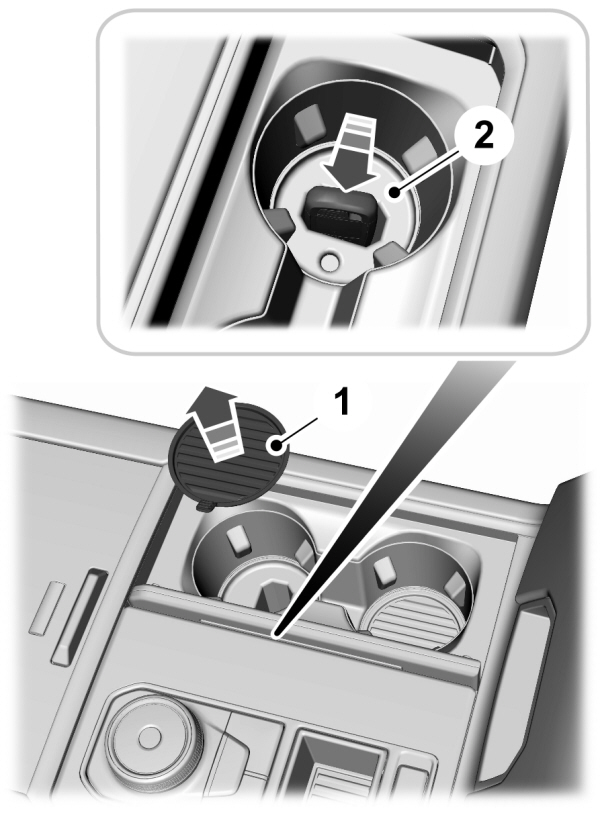
- Raise the center console storage compartment lid.
- Place the remote control in the backup slot with the buttons facing toward the rear of the vehicle.
- Switch the ignition on using the key you want to create as MyKey.
- Press Settings on the touchscreen.
- Press Vehicle Settings.
- Press MyKey.
- Press Create MyKey.
- Press Yes.
- Switch the ignition off.
Note: You successfully created a MyKey. We recommend that you label this key so you can distinguish it from the admin keys.
Note: The programmed restrictions apply when you switch the vehicle off, open and close the driver door and restart your vehicle with the programmed key or remote control.
Stored owner’s manualImported HTML from the shared Autotk manuals tables. Not an official Toyota site.